DTF Junkie
HomeServicesDTF Gang Sheet BuilderDTF Placement StudioPlansContactPrivacyTerms
LoginSign up
✦DTF One-Click EditBackground RemovalAI UpscaleAuto TrimEdge CleanupHalftoneDistresserRGB to CMYK✦AI Smart Edit
Explore the toolsBackground Removal
✦DTF One-Click EditBackground RemovalAI UpscaleAuto TrimEdge CleanupHalftoneDistresserRGB to CMYK✦AI Smart Edit
← All tools / Background Removal
Great artwork. Zero distractions.

Keep the art.
Lose the
background.

Your design belongs on a shirt. The white box doesn’t. Remove the background and give your next big idea a clean start.
Upload your artwork
✓ No Photoshop skills needed✓ Transparent PNG
A cleaner canvas for your creativity01 — 02
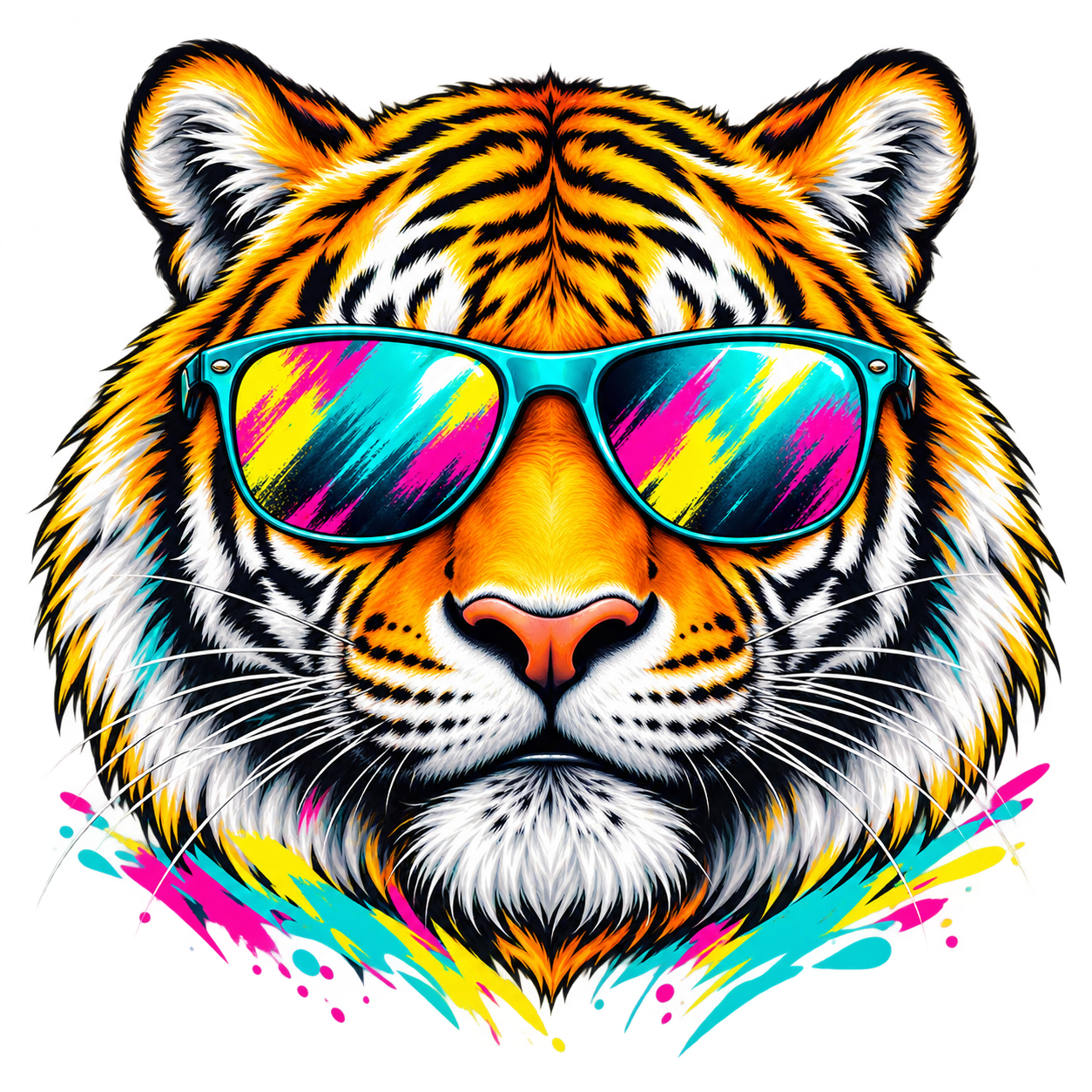
Colorful tiger artwork isolated on a transparent background
OriginalBackground removed ✓
‹ ›
NO BACKGROUND.
ALL PERSONALITY.
↔ Drag to reveal the difference · Sample artwork
✦✦
Less editing. More creating.✦Made for your next shirt.Background removal / 02
Your next design starts here

Goodbye, white box.

Drop your artwork. Preview the possibilities.
Keep the focus on what you actually want to print.

01

Add your artwork

ONE FILE AT A TIME
or

Removes semi-transparent edge pixels (the white halo). Lower keeps fainter edges and fine detail; higher removes more fringe.

Your artwork is processed with AI to remove its background.

Select one file to remove its background.

No layers. No masking tutorials.

Three steps. A cleaner start.

Let’s try it ↗
01↥

Bring your idea.

A logo, a photo, your next shirt design. Start with the clearest image you have.

02✦

Let the background go.

Use the AI remover to isolate your subject. Less time clicking around the edges.

03↓

Check it. Make it yours.

Inspect the edges on light and dark backgrounds. Save a transparent PNG and keep creating.

Want the whole prep workflow?

One design.
DTF One-Click Edit.

Background removal is a great start. DTF One-Click Edit brings your image-prep steps together, so you can get back to making T-shirts.

Let DTF One-Click Edit handle it ↗
✦
✓ Remove background
✓ Trim empty space
✓ Upscale artwork
✓ Prepare resolution
A little know-how

Clear background.
Clear answers.

A few good things to know before
your next print.

What file types can I upload?

Upload one JPG, PNG, WEBP or TIFF artwork at a time, up to 50 MB. The background is removed and you get a transparent PNG to download.

Will the checkerboard appear on my shirt?

No. The checkerboard is a viewing aid that marks transparent areas. Your downloaded PNG keeps those areas transparent.

Is background removal the same as a print-ready file?

Background removal is one part of the process. Check the edges, image resolution and final print size, too. DTF One-Click Edit brings several preparation steps together; always review the final artwork against your printer’s specifications.

What if my artwork has fine details or soft edges?

Zoom in and review those areas carefully, especially hair, fine lettering, smoke and shadows. Compare on both light and dark backgrounds. If you find leftover semi-transparent pixels, the Edge Cleanup tool can help with the next step.

Logo

AI-powered image preparation for print-ready files, clean product visuals, and faster creative workflows.

Product

  • Services
  • DTF Gang Sheet Builder
  • DTF Placement Studio
  • Plans
  • Dashboard
  • Contact

Tools

  • Halftone
  • DTF One-Click Edit
  • Edge Cleanup
  • Distress
  • Background Remove
  • AI Enhancement
  • Auto Trim
  • Auto Crop
  • Image Resizing
  • RGB to CMYK

Contact

dtfjunkie@gmail.com+8899036154
Online support

© 2026 DTF Image Prep. All rights reserved.

Privacy PolicyCookie PolicyTerms of ServiceContact Us